

1. Go to the Okta Sign-in Page
Navigate to the Okta sign-in URL: austincc.okta.com
2. Click on the “Forgot password?” link.
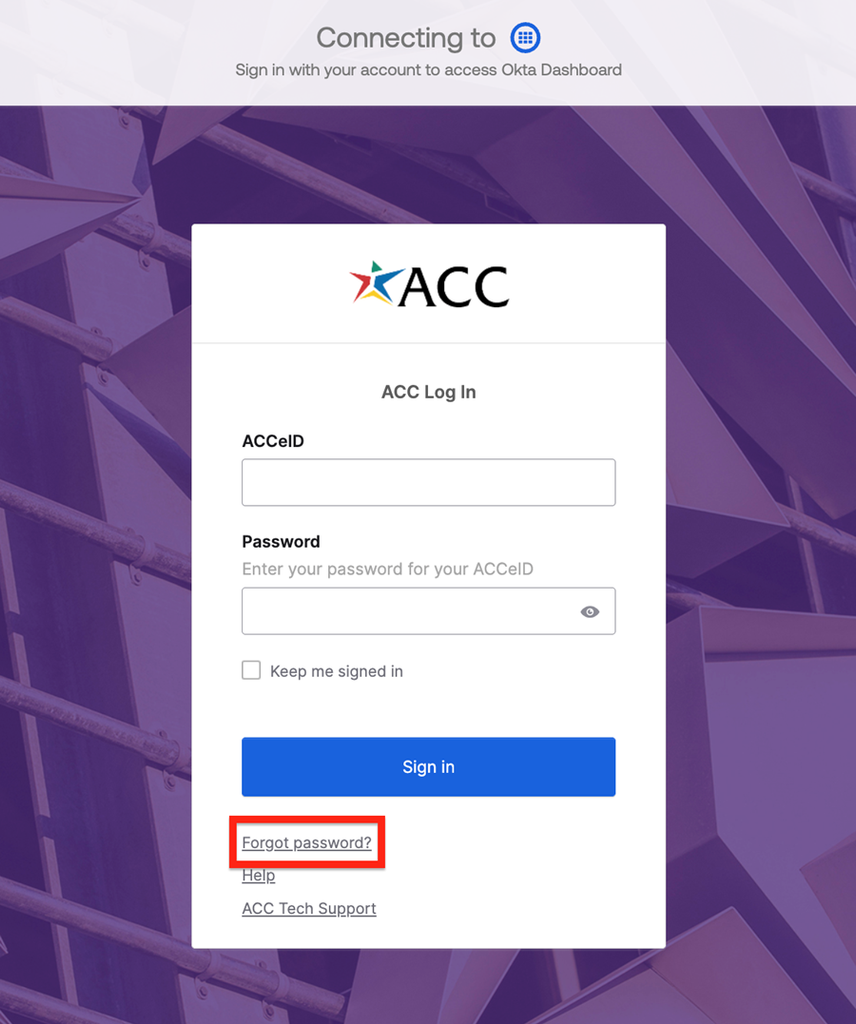
3. Enter your ACC EID and click on “Next.”

4. Select a recovery method to verify with.

Note: To use the “Email” option, you must have a recovery email you can access without having to authenticate via Okta set as your “Secondary Email” for this method to work. An ACC email address will require you to authenticate with Okta before being able to access your inbox.
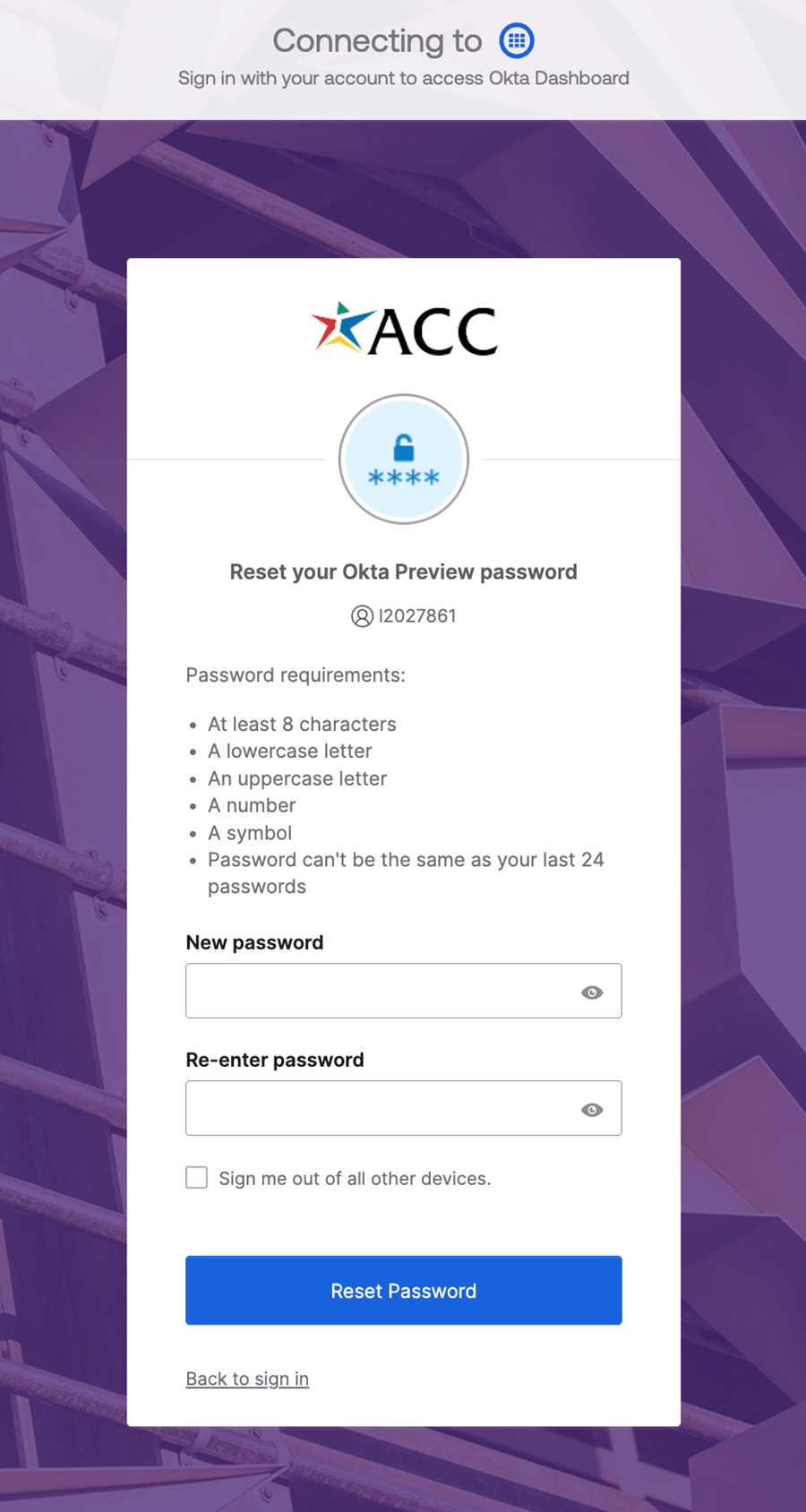
5. Create a New Password.
- Enter a new password that meets ACC’s security requirements and contains:
- At least 8 characters in length
- A lowercase character (abcd…)
- An uppercase character (ABCD…)
- A number (0, 1, 2, 3, 4, 5, 6, 7, 8, 9)
- A symbol or special character (@#$%^&*()_+!?)
- The password cannot be the same as your last 24 passwords
- Confirm your new password by re-entering it, and click “Reset Password.”
6. Sign in.
- Return to the Okta sign-in page.
- Log in with your ACC EID and the new password.