

Priority Registration Pilot for Spring 2027: SAS Students
Important: Students receiving accommodations for visual disabilities, physical disabilities, and deaf and hard of hearing students are eligible for priority registration for spring 2027. Meet with your SAS Advocate before Wednesday, October 7 to confirm your eligibility.
Mission Statement
To provide equitable and effective access for students with documented disabilities in order to support their full participation in College classes and activities.
SAS staff serve students in the following ways:
- Identify reasonable accommodations
- Establish and coordinate accommodations
- One-on-one meetings in person, online, or by phone
- Access to Assistive Technology
- Disability-related problem solving and advocacy
- Information and referrals to additional ACC resources
More Information
Request SAS Services
How to Connect with SAS
Accessible Information Management (AIM)– Accommodation Portal
AIM Student Features
AIM Faculty Features
Resources for Remote Learning
Initial Requests for SAS Services
To establish SAS services, students must complete the SAS Application for Services and Accommodations, provide documentation of diagnosis, and schedule an Access Needs Meeting with an Accessibility Advocate.
Visit Accessibility Services ‒ New Students if you are new to ACC and not yet enrolled in classes, need accommodations for the TSI assessment, or want to find out more about the SAS application process.
How to Connect with SAS
More information on SAS Consultations, SAS Connect and Access Needs Meetings
SAS Consultation
Need a quick check-in? SAS Consultations are 30-minute meetings with a SAS Advocate, designed for quick support throughout the semester. SAS Consultations can be set-up by reaching out to campus SAS advocate emails on the SAS Campus Contact page.
For Faculty, Staff and Prospective Students: Get answers to general questions regarding accessibility at ACC. Have questions about accommodations in your course, we are happy to consult with you!
For Enrolled Students: Discuss current accommodations, request updates for new courses, or ask general questions about navigating accessibility at ACC. Visit Accessibility Services ‒ Current Students if you already receive accommodations through SAS and would like to request semester accommodations.
SAS Connect
SAS Connect is the team that supports students submitting accommodation applications. This team is a students first contact in requesting accommodations at ACC. They are responsible for reviewing applications and documentation, and then connecting students with a SAS Advocate to schedule an initial Access Needs Meeting. SAS Connect can also support student questions about what type of documentation is needed.
Email: [email protected]
Access Needs Meetings
Access Needs Meetings are for students who are enrolled at ACC, who have submitted a SAS Application and are currently experiencing an academic barrier. An Access Needs Meeting is an interactive, confidential, one-on-one session between a student and SAS Advocate to discuss functional limitations and determine reasonable accommodations. Once an Access Needs Meeting is complete students will be able to request Faculty Notification Letters (FNL) and begin utilizing approved accommodations.
For general questions, email [email protected].
Accessible Information Management (AIM)
AIM is ACC’s confidential accommodation management platform utilized by SAS staff, students, and faculty.
NEW UPDATE:
| Coming Summer 2026, SAS is excited to share that our accommodation management system, AIM, will transition to Version 5 the weekend of May 23rd, 2026. While the core structure of the portal will remain familiar, this updated version introduces several enhancements designed to improve the user experience for students, faculty, and staff. |
AIM Student Features:
- Log in to Student AIM Dashboard
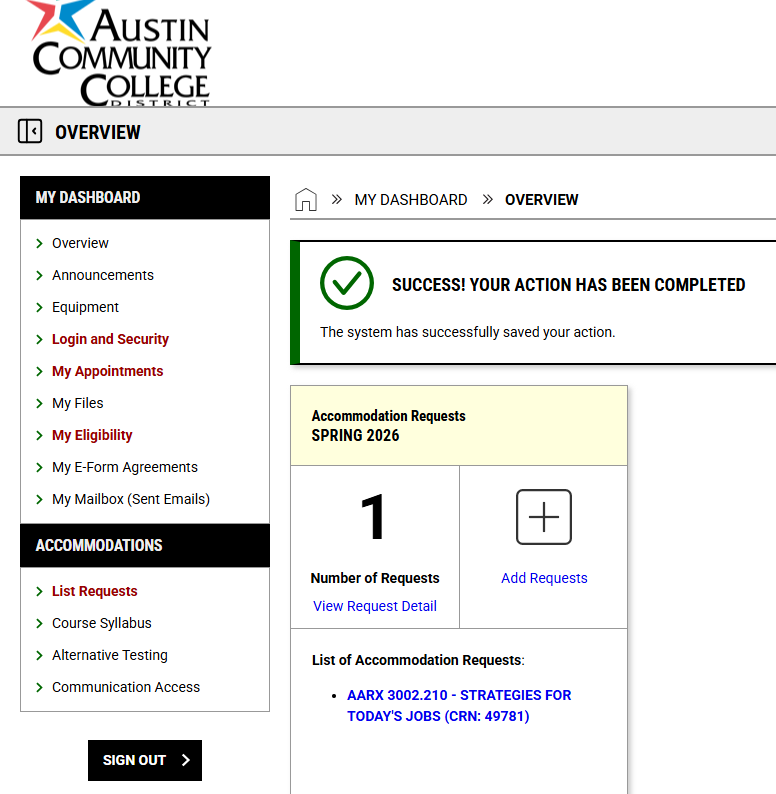
How to request your Faculty Notification Letters
To request your Faculty Notification Letters (FNL) for the current semester, follow these step-by-step instructions using the AIM Student Dashboard. Review guide on how to request your Faculty Notification Letters (FNL).
Step 1: Access Your Courses
- Log in to your Student AIM Dashboard.
- On the main page, your current semester courses will be visible under the Accommodation Requests module.
Step 2: Initiate the Request
- Locate the box for the upcoming term (e.g., SPRING 2026).
- Click on the plus (+) sign labeled “Add Requests for [Number] Classes” to start the process.
Step 3: Select Your Courses
- Under the section “STEP: SELECT COURSES,” check the box next to each course for which you would like to request accommodations.
- If you want to use the same supports for every class, check the box for “Apply the same accommodations to all selected courses”.
- Click the black button labeled “CONTINUE TO NEXT STEP >”.
Step 4: Choose Specific Accommodations
- Review the “How to Request Accommodations” section for each course.
- Click “Select Accommodation(s) for each course” and check the corresponding boxes for the specific accommodations you require (e.g., Alternative Testing, Course Access).
- Important: Your instructor will only be notified of the specific accommodations you select during this step.
Step 5: Final Submission
- Scroll down to the “STEP: FINAL STEP” header.
- Click the black “SUBMIT REQUEST” button to complete the form.
Step 6: Processing and Notification
- Upon successful submission, you will see a green checkmark and the message: “SUCCESS! YOUR ACTION HAS BEEN COMPLETED”.
- Your request will be placed in a queue for review by Student Accessibility Services (SAS) staff.
- Once approved, AIM will automatically emails Faculty Notification Letters directly to the instructor(s) of record and student.
- The email will be addressed from SAS staff at your primary campus location.
Information on Testing Accommodations
SAS Testing supports both Faculty and Students in the testing-accommodation process. Testing is coordinated online using the Accessible Information Management (AIM) system. SAS Testing can assist with troubleshooting AIM, scheduling student exams, and proctoring online testing with accommodations.
Click for more information on Students Using AIM for Testing
- Retrieve record of accommodations
- Receive updates and reminders from SAS
AIM Faculty Features:
- Log into the AIM Instructor Portal
IMPORTANT: A New Look to AIM Version 5 Faculty Dashboard
To view student accommodation letters log into the AIM Instructor Portal
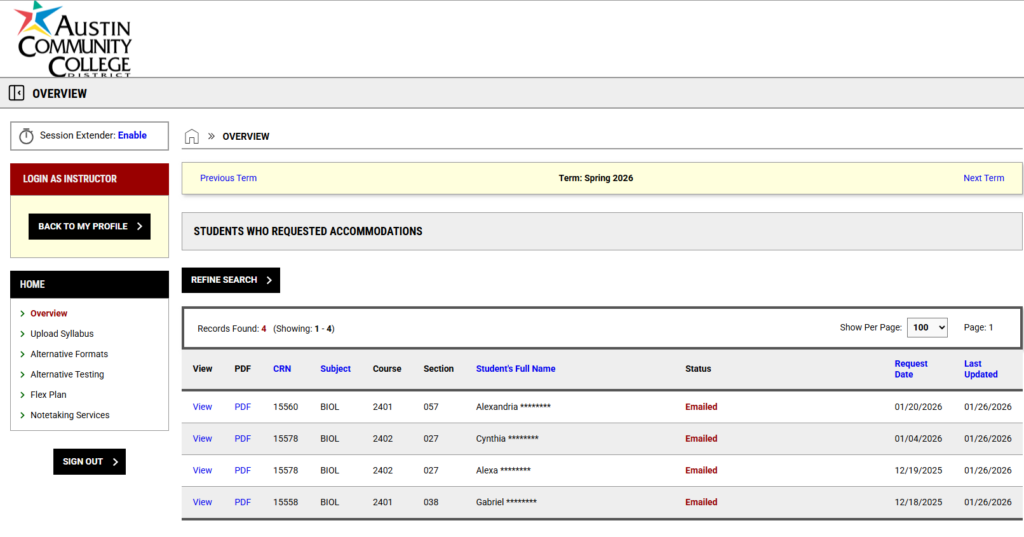
- Faculty- Using the Alternative Testing Module in AIM
- Setting up Exams in AIM Version 5
- Request a presentation about SAS Services: SAS Outreach Request Form
Resources for Remote Learning
Visit Online Student Support for a list of additional college and community resources to help students.
Last Updated: May 19th, 2026
Back to Top