

SAS Testing supports both Faculty and Students in the testing-accommodation process. Testing is coordinated online using the Accessible Information Management (AIM) system. SAS Testing can assist with troubleshooting AIM, scheduling student exams, and proctoring online testing with accommodations.
- Getting Started- Testing with Accommodations
- On-Campus Testing (Campus Testing Centers)
- Online Testing
- Faculty- Using the Alternative Testing Module in AIM
- Students- Using AIM for Testing
- Accommodated Assessments
For SAS Testing Questions Email: [email protected]
NEW UPDATE:
Coming Summer 2026, ADS will be updating the Faculty AIM Portal to version 5.
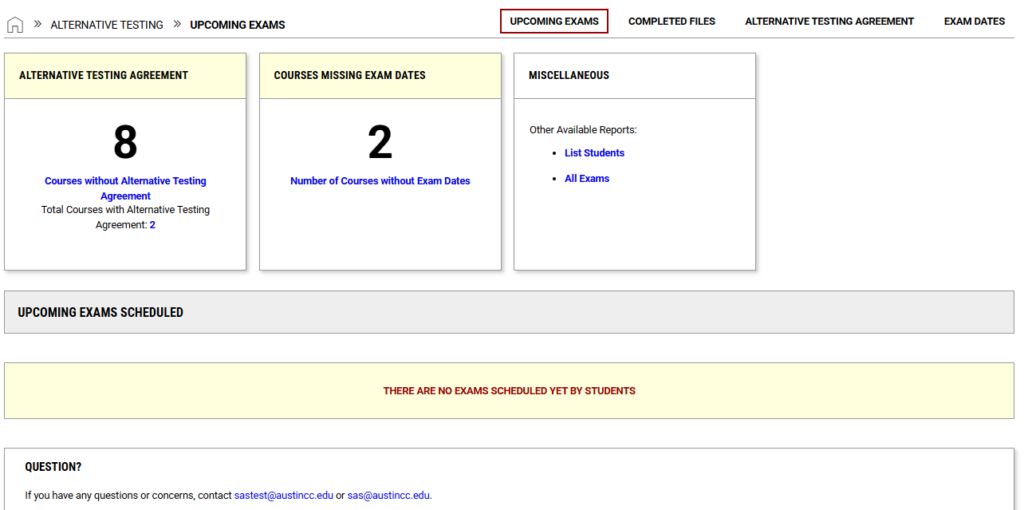
The process to submit an Alternative Testing Agreement will be the same; however, there is a new look to navigating the resource. The image below is a screenshot of the updated Faculty Alternative Testing Upcoming Exam page.
Getting Started- Testing with Accommodations
Current SAS students must request their Faculty Notification Letters through AIM. Once the letter is received by the instructor, it should be determined how testing accommodations will be provided for the course. If instructors cannot accommodate a student in a classroom or a departmental setting, please read about Testing Options.
Consider the following testing requirements:
- Review the course syllabus for test information (i.e. test format, test proctoring, time, important dates).
- Once you have requested accommodations and your professor receives your Faculty Notification Letter, please take the time to discuss your testing accommodations with your professor to determine your testing location.
On-Campus Testing (Campus Testing Centers)
Campus testing centers provide proctoring services for in-person classes
If any of the following scenarios apply to your course testing, you do NOT need to schedule an appointment:
- The instructor can accommodate in class and/or during office hours.
- The class does not have any exams and/or they are take-home assessments.
- The class is project-based without testing.
- The assessments for the lab course has equipment that cannot be transferred to another room.
Equipped with assistive technology and testing space, testing centers can proctor accommodated exams during their hours of operation.
When an instructor and student agree to have accommodated testing at a campus testing center, testing is coordinated in AIM. Students submit exam requests 5 business days before an exam, and faculty must provide the necessary testing information 2 days before the exam date.
Online Testing
SAS Virtual Proctoring is intended for Distance Learning courses.
If any of the scenarios apply to your course, you do NOT need to schedule an appointment:
- The class does not require proctoring for exams.
- Exams are not timed.
- The instructor is using AI for proctoring (e.g. Respondus LockDown Browser, Respondus Monitor), and accommodations are compatible with Respondus software.
- The entire class is being proctored by the instructor. The instructor can stay online to accommodate.
Online exams must begin within the following hours:
Mon – Fri: 8 AM – 6 PM
Saturday: 10 AM – 12 PM
Sunday: Closed
The SAS Department provides an online virtual proctoring service for students with accommodations in distance learning courses. Appointments can be made via AIM. Students must submit their requests in advance, and professors must complete the testing information before students’ appointments.
For online exams with SAS Virtual Proctoring, students need the following:
- A Windows or Mac PC/laptop or Chromebook
- A functioning Webcam, which must remain on at all times during the exam
- Microphone for laptop
- Valid photo ID; ACC student ID preferred (driver’s license; state, military, passport, or other government forms of ID are valid along with an ACC student ID number)
- Permitted testing materials, per the professor’s instructions
What to expect during an online exam:
- Half an hour (30 minutes) before a scheduled test, students receive an email from [email protected] with a link for the proctoring session and the proctor’s name.
- The proctor will ask the student to present a photo ID, survey the testing area, and demonstrate that there are no cell phones and that students are only allowed authorized testing materials.
- Student must share their screen with the proctor(s); refusal will end the test session immediately.
- The testing sessions are recorded and can be submitted to the professor for review upon request (please email [email protected] for a copy).
- Students with approved breaks as an accommodation must notify the proctor when they need a break; breaks cannot exceed the given time limit, and the clock does not stop during breaks.
- Students must submit their test when the time expires even if the exam is not complete. Refusal to do so is reported to the professor.
- Any suspicious activity may result in the termination of a test session and will be reported.
Faculty- Using the Alternative Testing Module in AIM
AIM Version 5 Testing for professors is one form split into two: the Alternative Testing Agreement Form and Exam Dates.
The Alternative Testing Agreement Form initiates testing in AIM for the professor and students.
Exam Dates allows the professor to submit specific exam dates, testing details, and documents. This feature allows professors to plan exams in advance based on syllabus deadlines.
Getting Started: Faculty AIM Testing Guide
Professors should submit their Alternative Testing Agreement Form at least 10 business days before the first exam date. Students are advised to submit exam requests 5 business days before an exam, and faculty must provide the necessary testing information at least 2 business days before an exam date.
- Filling out an Alternative Testing Agreement Form
- Log into the AIM Instructor Portal
- Modify an Alternative Testing Agreement Form
- Copy an Alternative Testing Agreement Form to another course
- Specific Exam Dates
- Features in Exam Dates
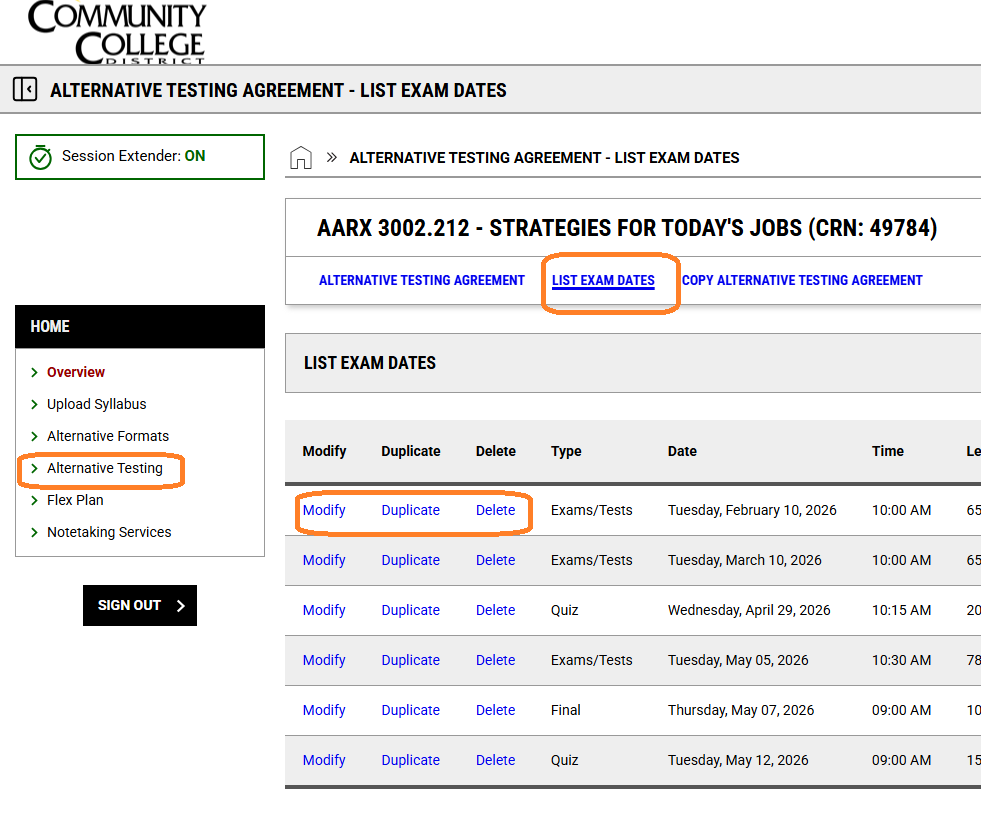
- Modify, Duplicate, or Delete an Exam Date
- Upload a File (e.g. Exam copy, coversheet, scratch paper) via Exam Dates
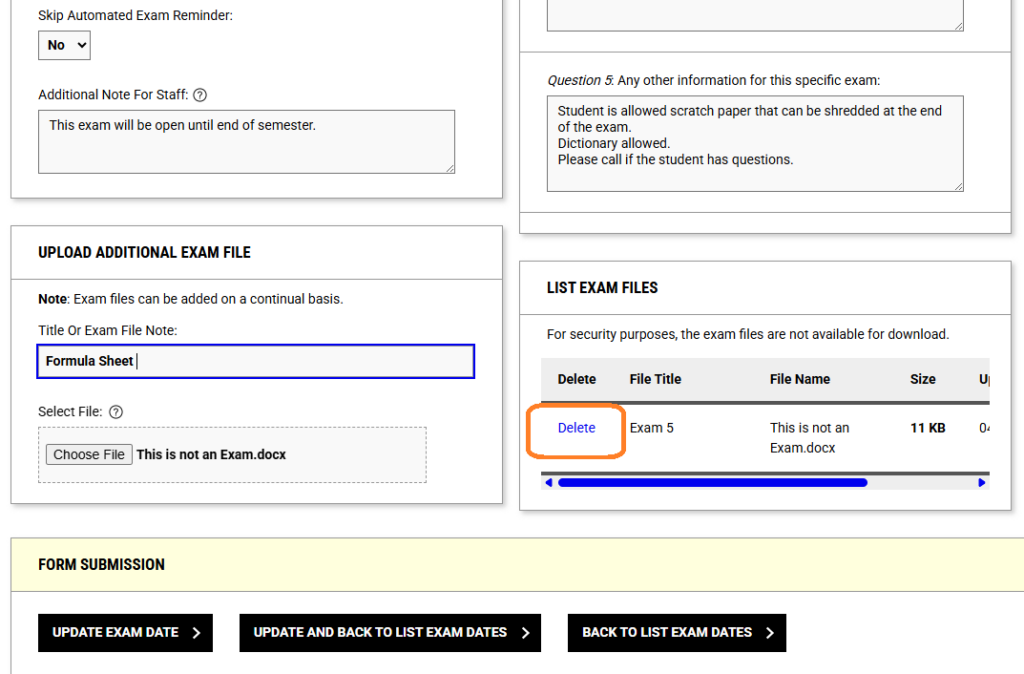
- Delete an Exam File on Exam Date
- Approving a Student’s Exam Request
Filling out an Alternative Testing Agreement Form
Instructors need to complete one Testing Agreement for each course/section. If they are teaching multiple sections, they can copy the agreement to multiple courses within the AIM Instructor Portal. Please fill out the form at the start of the semester.
Instructions to Filling out an Alternative Testing Agreement
- Log in to AIM
- Click Alternative Testing
- Either select “Courses without Alternative Testing Agreement” in the Box on the page or the Tab that reads “Alternative Testing Agreement”
- This will navigate to a page of courses
- Click Specify next to the course
- Fill out the list of Questions
- Use Text Boxes to detail specific information (e.g., special instructions, communication specifics)
- Under Form Submission, click “Submit and Continue to Specify Exam Dates”

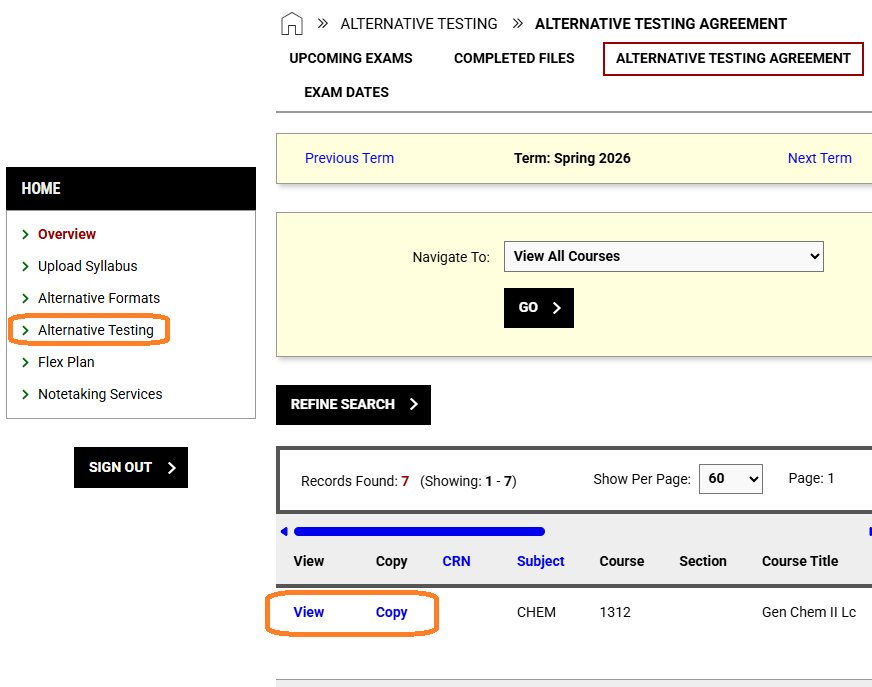
Modify an Alternative Testing Agreement Form
Instructions to Modify an Alternative Testing Agreement Form
- Log in to AIM
- Click Alternative Testing
- Select the tab that reads “Alternative Testing Agreement”
- This will navigate to a page of courses
- Click View
- Edit the Course Information
- Under Form Submission, click “Update and View Exam Dates”
Copying an Alternative Testing Agreement Form
If an Alternative Testing Agreement already has Exam Dates, all Exam Dates will transfer; however, professors may deselect certain dates.
If a professor has several sections for one course, and all the courses use the same testing information, fill out an Alternative Testing Agreement Form and all the Exam Dates before copying an Alternative Testing Agreement Form, so all the information can transfer over.
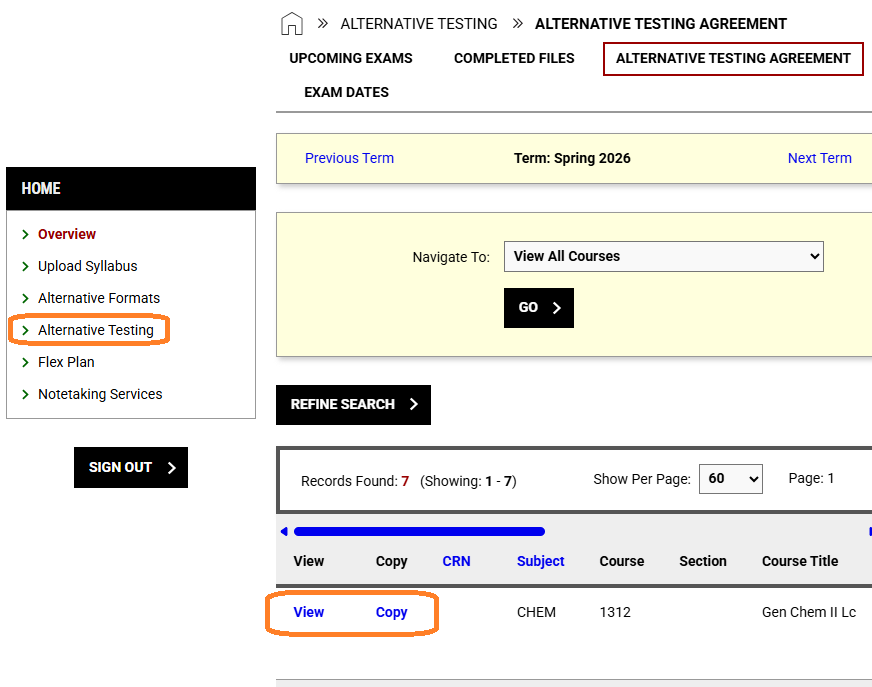
How to Copy an Alternative Testing Agreement Form
- Log in to AIM
- Click Alternative Testing
- Select the tab that reads “Alternative Testing Agreement”
- This will navigate to a page of courses
- Find the course and click Copy
- Select the courses
- Modify any Exam Dates as needed – deselect the dates that the course section will not use or change the date/time,
- Click Copy to selected courses
Specific Exam Dates
Exam Dates allow professors to create individual entries per exam. To ensure students have sufficient time to submit their accommodation requests, we recommend entering all exam dates at the start of the semester. Please note that the system only allows one exam deadline per day.
- Log in to AIM
- Click Alternative Testing
- Either select “Number of Courses without Exam Dates” in the box on the page or the tab that reads “Alternative Testing Agreement”
- This will navigate to a page of courses with Alternative Testing Agreements
- Find the course and click View
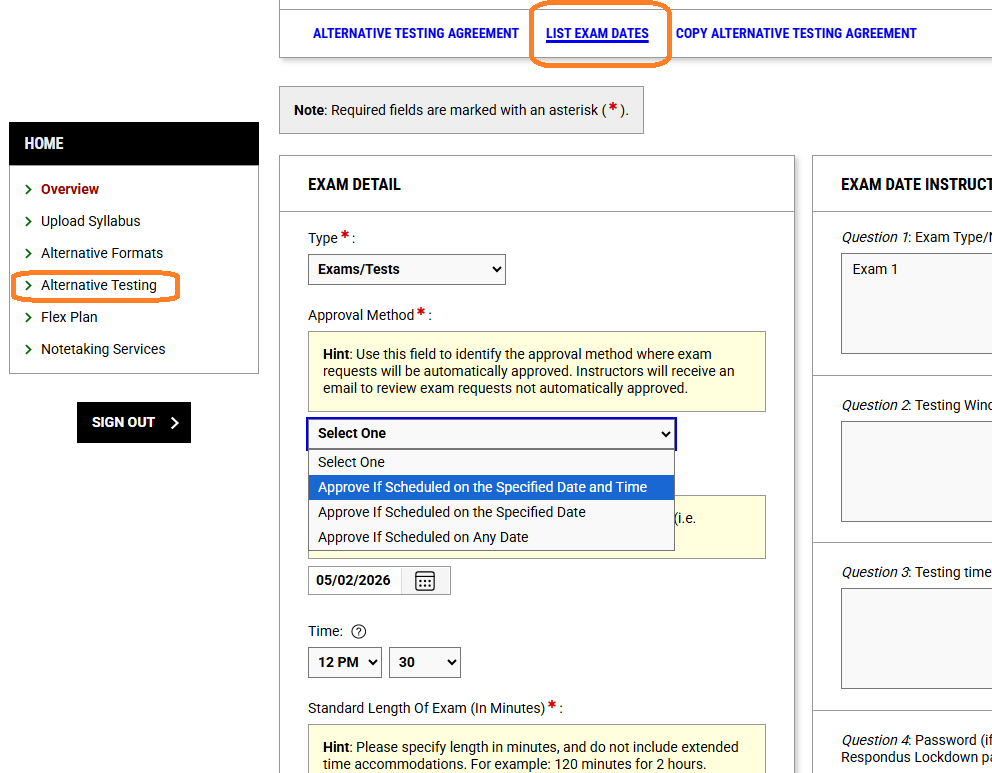
- Click “List Exam Dates”
- Under Exam Detail, complete the fields and questions
- Additional Note For Staff: Use this section to list updated passwords and/or specific testing information for the entry.
- Fill out the questions under Exam Date Instructions
- Click Save Exam Date
Features in Exam Dates
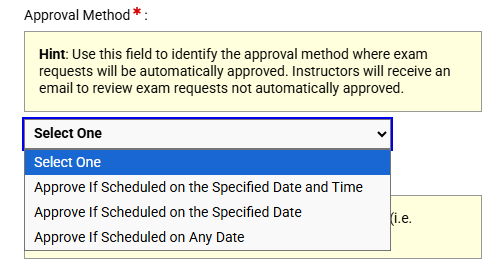
Approval Methods
- Approve if Scheduled on the Specified Date and Time – most restricted option; students can still select a different date/time, but professors will be notified and need to approve or dispute
- Approve if Scheduled on the Specified Date – not as restrictive; students can still select a different date, but professors will be notified and need to approve or dispute
- Approve if Scheduled on Any Date – most flexible option; works well for end of semester deadlines; professors can still dispute requests
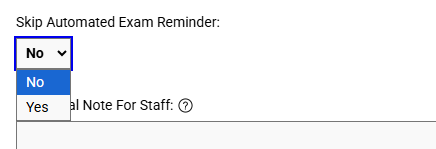
Automated Reminder
- If you select “No” on the “Skip automated exam reminder”, it will send reminders to your students about scheduling the exam as the date approaches.
- If you select “Yes” for “Skip automated exam reminder”, students will not receive reminders.
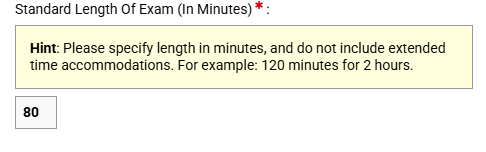
Testing Time
Enter the testing time in minutes (every student’s testing time will adjust accordingly if they select their Extended Time Accommodation)
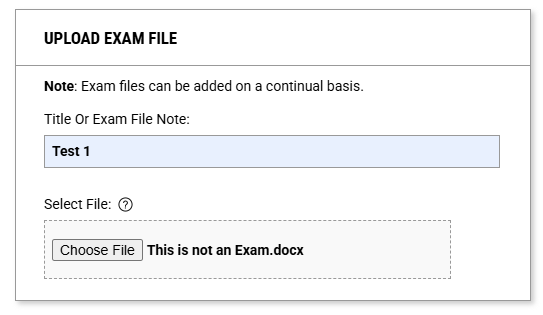
Upload Exam File
- When applicable, use the Upload Additional Exam File
- Name the exam title
- Either select a file or drag and drop a file
Modify, Duplicate, or Delete an Exam Date
Instructions to modify, duplicate or delete an exam date
- Log in to AIM
- Click Alternative Testing
- Either select “Number of Courses without Exam Dates” in the Box on the page or the tab that reads “Alternative Testing Agreement”
- This will navigate to a page of courses with Alternative Testing Agreements
- Find the course and click View
- Click “List Exam Dates”
- Find the exam date
- Select the action needed: Modify, Duplicate, Delete
- Modify: make any necessary edits and click Update Exam Date
- Duplicate: make any changes to the duplicate and click Save Exam Date at the bottom
- Delete: after selecting, you’ll navigate to another page to confirm Delete, click Delete
Upload a File (e.g. Exam copy, coversheet, scratch paper) via Exam Dates
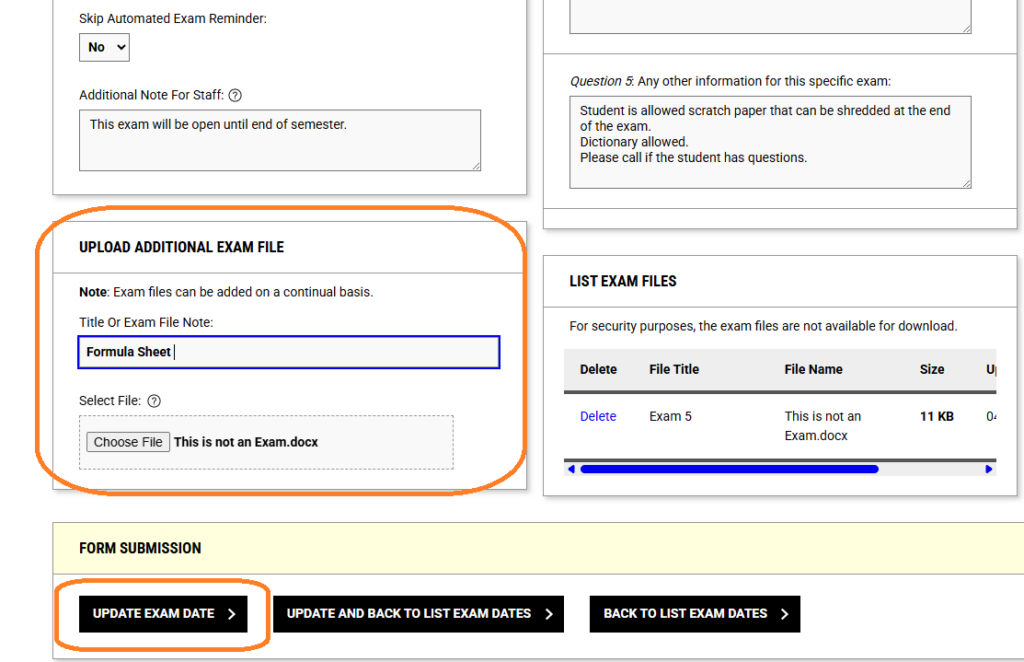
How to Upload a file via Exam Dates
- Log in to AIM
- Click Alternative Testing
- Click Alternative Testing Agreement
- Find the course and click View
- Either scroll down and create an Exam Date or click Modify on an existing exam date
- Scroll to the Upload Exam File Section
- Name the exam file
- Either select a file or drag and drop a file
- Click either Update Exam Date or Save Exam Date
- The green checkmark will show that the action was successful.
- Instructors can always email a copy of the exam to [email protected].
A Note on Adding Multiple Documents:
- If you are updating an already existing Exam Date, you will still be on the same Exam Date, so if you need to upload another file, scroll to the Upload Exam File Section to upload another document.
- If you created a new Exam Date, you’ll see the green check mark, and listed below, you’ll see your exam dates. Click Modify to add another file.
Delete an Exam File on Exam Date
- Log in to AIM
- Click Alternative Testing
- Click Alternative Testing Agreement
- Find the course and click View
- Either create an Exam Date or click Modify on an existing exam date
- Scroll to the bottom to find the List Exam files section
- Click Delete
- A confirmation pop-up will ask you to confirm
- Click Confirm
- A green check mark will appear when your action is complete
Approving a Students Exam Request
When professors set an Exam Date, Approve if Scheduled on the Specified Date and Time or Approve if Scheduled on the Specified Date directs students to specify the information the professor provided. However, if a student makes an exam request outside the indicated date and/or time, professors will have to approve the request.
Approvals need to be completed at least 2 business days before the exam date.
Review the three methods to approve exams
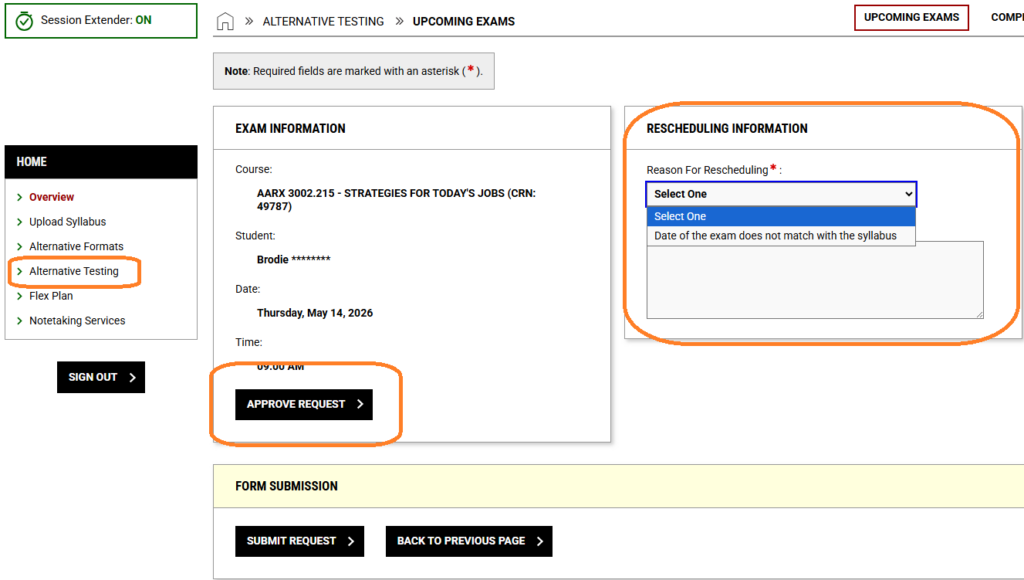
Method 1: Approve a single request through the Alternative Testing Screen
- Log in to AIM
- Click Alternative Testing
- Scroll down to Upcoming Exams
- Find the exam request
- Click Instructor Approval Required
- To approve the date/time the student selected click Approve Request
- To dispute use the Rescheduling Information section
- Place any notes for the student and staff in the additional note section
- Click Submit Request
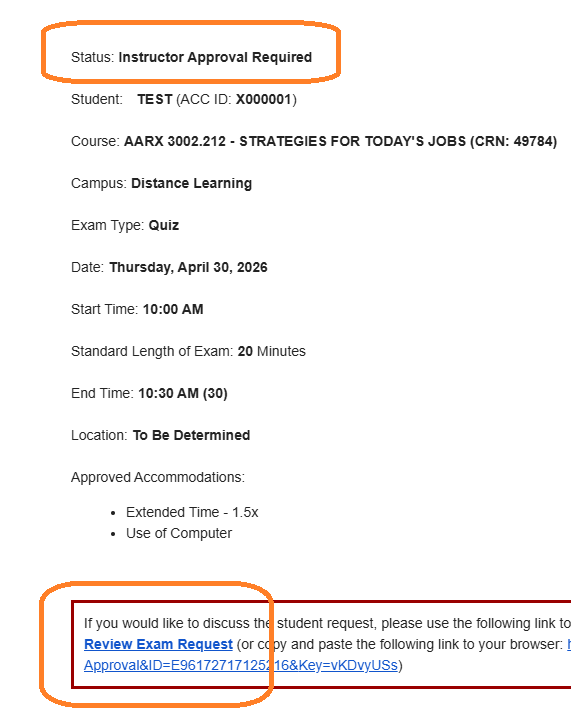
Method 2: Approve a students exam request from the Exam Request Email
Student requests will generate an email for each request. Navigate the email to see the status, if the status says instructor approval required, scroll down to the red box and click Review Exam Request.
The link will navigate to AIM. Approve the Exam Request or Propose Rescheduling. If you click approve, in the exam information section the request will be approved right away. Instructors will not be able to dispute the students exam request.
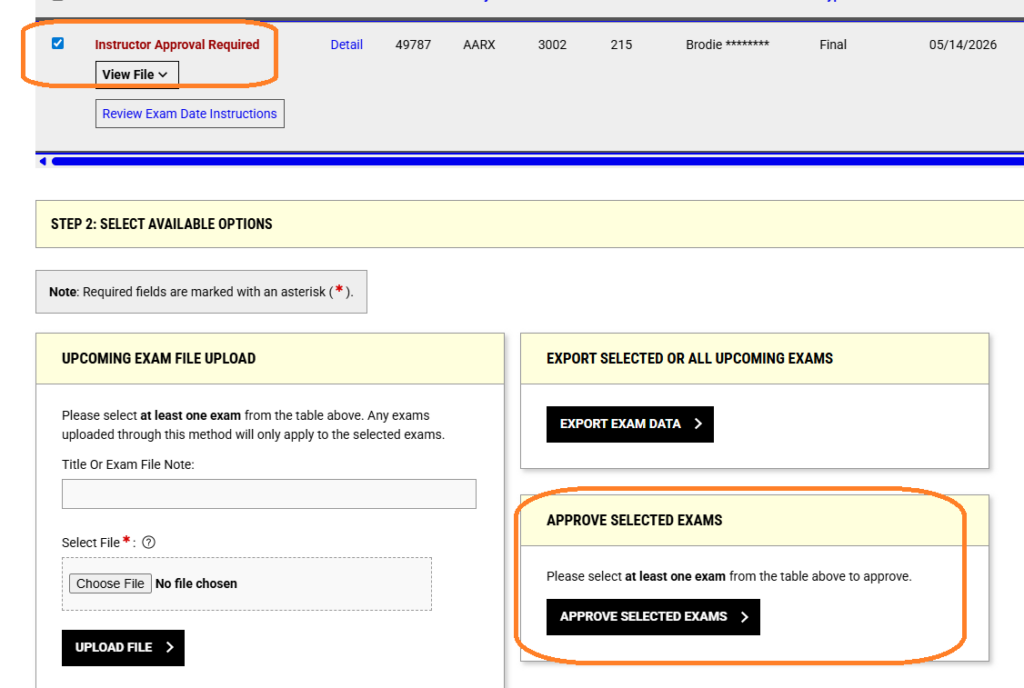
Method 3: Approve multiple student exam requests from the Alternative Testing screen in AIM
- Log in to AIM
- Click Alternative Testing
- Scroll down to Upcoming Exams
- Click the check by students’ requests
- Navigate to Approve Selected Exams
- Click Approve Selected Exams
Students- Using AIM for testing
- Student Guide to Making Exam Requests in AIM Version 5
- Exam Request
- Important Deadlines & Requirements for Exam Requests
- Late Submissions
- Considerations for Late Approvals
- Tracking, Modifying, or Canceling a Request
Exam Request (making an appointment)
Students who will either test at a campus testing center or with SAS virtual proctoring must complete an Exam Request form for each accommodated exam or quiz.
Students are responsible for scheduling their exams during testing center hours of operation.
Students submit exam requests 5 business days before an exam, and faculty must provide the necessary testing information at least 2 business days before an exam date.
Important Deadlines & Requirements for Exam Requests
Advance Notice: All exam requests for accommodated testing at a campus testing center or via online SAS Virtual Proctoring need to be submitted at least 5 business days in advance of an exam date.
Frequency: Submit a separate, individual request for each exam/quiz.
Late Submissions
Scheduling an exam less than 5 business days in advance flags the request as late. A Late request is not immediate grounds for denying a student’s exam request. All late requests are reviewed on a case-by-case basis for approval.
Considerations for Late Approvals
- Professor provided exam materials and instructions in advance and are available before the student exam request.
- Professor has given permission to approve late request.
- Student and Professor already agreed upon an exam date- student should provide an email/communication from their professor to [email protected].
- Some accommodations require specific time constrictions due to need for access materials, equipment, and/or personel.
- Online Testing: Exams may be approved based on staff proctor availability and professor approval.
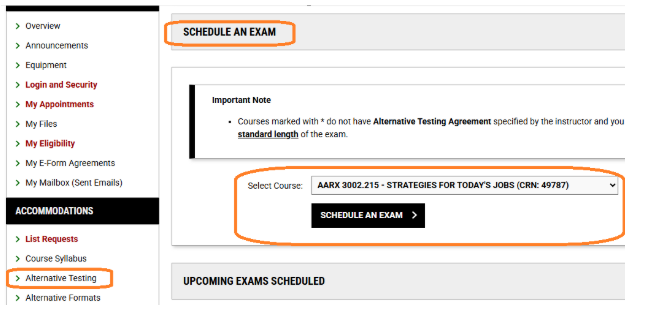
Accessing the Alternative Testing Portal
- Log in to AIM Student Portal
- Under the “Accommodations” section, click on “Alternative Testing”.
- The Alternative Testing overview page is the main hub for creating and managing all exam requests.
- On the “Schedule an Exam” dashboard, locate the “Select Course” dropdown menu.
- Click the dropdown arrow and select the specific course to schedule an exam.
- Note: If a course is marked with an asterisk (*), it means the professor has not yet submitted their Alternative Testing Agreement (ATA) into the system. You can still proceed with your request.
- Click “Schedule an Exam” to begin entering details.
Entering Exam Request Information
Instructions with images: Student Guide to Making Exam Requests in AIM Version 5
Fill out the form fields based on the details provided in your course syllabus or through direct discussions with your professor (such as campus location, date, and time). The process varies depending on whether your instructor has pre-submitted their testing details:
If the Professor Has NOT Submitted an Alternative Testing Agreement
- Log in to AIM Student Portal
- Click Alternative Testing
- Use the drop-down arrow to select a course (courses without an Alternative Testing Agreement Form have an asterisk)
- Select Schedule an Exam
- Select Exam Type
- Select a Campus (Distance Learning is for online exams)
- Select a Date
- Select a Start Time
- Standard Length of Exam – input the time your class is allowed for testing
- Select all of the accommodations you are wanting to utilize for the exam.
- Additional Note: Type in the exam number and any accommodation(s) notes
- Review the Terms and Conditions
- Click Add Exam Request
If the Professor HAS Submitted Exam Information
- Log in to AIM Student Portal
- Click Alternative Testing
- Use the drop-down arrow to select a course
- Select Schedule an Exam
- Under Available Exam Dates, select the date
- Select a Campus (Distance Learning is for online exams)
- When a list exam date is selected, the start time and date auto-populate based on what the professor filled out in AIM
- Please note, you can modify the date and time, but testing out of the dates selected by the professor may require professor approval
- Under “Services Requested”, check the boxes for the testing accommodations you wish to use for this specific test (e.g., Extended Time – 1.5x).
- Please note that the total exam length displayed will change if an Extended Time accommodation is selected
- Additional Note: Type in the exam number and any additional information about your accommodations
- Review the Terms and Conditions
- Click Add Exam Request
The system will automatically calculate and display your adjusted timing parameters (e.g., Total Exam Length and Exam Ends At) based on your approved multipliers.
Tracking, Modifying, or Canceling a Request
After submission, you can actively track your request status by logging back into AIM and navigating to the Alternative Testing page.
Understanding the Timeline & Statuses
Initial Notification: Each exam request instantly emails an outline of the request details to both you and your professor. Please note that this initial email is only a receipt and is not an exam confirmation.
Monitoring Status: Your dashboard will show live tracking updates (Processing or Approved) as staff review your file.
Final Confirmation: You will receive an official exam confirmation email at least one business day prior to your scheduled test date.
To modify or drop a request, go to your scheduled exams list on the Alternative Testing page and click the “View” link next to the relevant exam record.
To Modify: Adjust any necessary text fields or selections under the Exam Request panel, then scroll to the bottom and click “Update Exam Request”.
To Cancel: Scroll to the dedicated “Cancel Exam Request” section to cancel your appointment.
Accommodated Assessments
TEAS ADN
TEAS LVN or Allied Health Exams
ATI Testing (Online Testing)
CLEP
TSI Assessment
TEAS ADN (Associate Degree Nursing) Exam
Students can test at the EVC Testing Center or the RRC Testing Center. For more information, please visit the ADN ATI TEAS Exam Page.
The student needs to follow these steps:
- Obtain a letter of accommodation from their assigned SAS advocate.
- Contact the nursing department [email protected].
- Email [email protected] with a specific testing date and testing location.
- SAS Testing or assigned SAS advocate places a calendar event on the testing center’s calendar.
TEAS LVN (Licensed Vocational Nursing) or Allied Health Exams
The student needs to test via Business and Assessment Testing (at either HLC or RRC).
- Students first need to obtain a letter of accommodation from their assigned SAS advocate.
- The letter is then emailed to Loreah Johnson: [email protected]
- More information on registering for the exam is on the Business and Assessment Testing Center (TEAS) page.
ATI Testing Accommodations (Online Testing)
- Please submit your accommodations request to ATI Test Security at [email protected] at least 30 days prior to testing/signing up for a test date to be considered for testing accommodations. For additional details, please refer to our TEAS FAQ about accommodations.
CLEP
The student needs to test via Business and Assessment Testing (at either HLC or RRC).
- Students first need to obtain a letter of accommodation from their assigned SAS advocate.
- The letter is then emailed to Loreah Johnson: [email protected]
- More information on registering for the exam is on the College Level Examination Program (CLEP) page.
TSI Assessment
ACC’s Student Accessibility Services (SAS) Office can help with accommodations that are not already built in features. Please review the information below to determine if you can schedule a TSI assessment without an accommodation request.
TSIA2 Built-In Features
These features are available to all students and do not require prior approval from our office:
- Untimed Testing: The mathematics and ELAR/essay sections (including Diagnostics) are untimed.
- Save and Finish Later: You may pause your test and return within 14 days by selecting “save and finish later.” (This option is not available for the essay, which must be completed in one sitting.)
- Accessibility Wizard: Allows you to adjust text size, color scheme, line spacing, and background/text color for improved readability.
- Built-In Calculators: Three calculators (basic four-function, square root, and graphing) appear when appropriate. We recommend reviewing the calculator tutorial in the Student Portal before testing.
- Highlighter Tool: Highlight reading passages and essay prompts. A quick tutorial is also available in the Student Portal.
Remote TSI Testing Option
If you’re interested in taking the TSI Assessment remotely, please know that remote testing is available for all ACC students and no accommodation request is needed. For remote testing assistance, please contact the Testing Center at [email protected]
Do you need accommodations beyond the built-in features for the TSI Assessment?
- Please email [email protected]. Once your email is received our Student Accessibility Services team will review your email within 2-3 business days (Monday–Friday, 8 a.m.–5 p.m.) and follow up with the next steps.
- Students will be asked to submit an application along with documentation that explains the barriers they experience during assessments related to a disability.
- Once the application and documentation is reviewed students meet with an Accessibility Advocate to discuss accommodation eligibility.
Plan Ahead: Accommodation requests are reviewed in the order they’re received. We cannot guarantee last-minute or next-day requests, so we encourage you to submit your request as early as possible.
If you need to take the TSI with accommodations for another college or university, please email the Business Assessment Office, [email protected].
For SAS Testing Questions Email: [email protected]
Phone Number: 512.223.5247
For General SAS Questions Email: [email protected]
Last updated: June 29th, 2026
Back to Top